Eval Management
Create, review, run, and manage evaluation queries that test Planara's answer quality.
What this page does
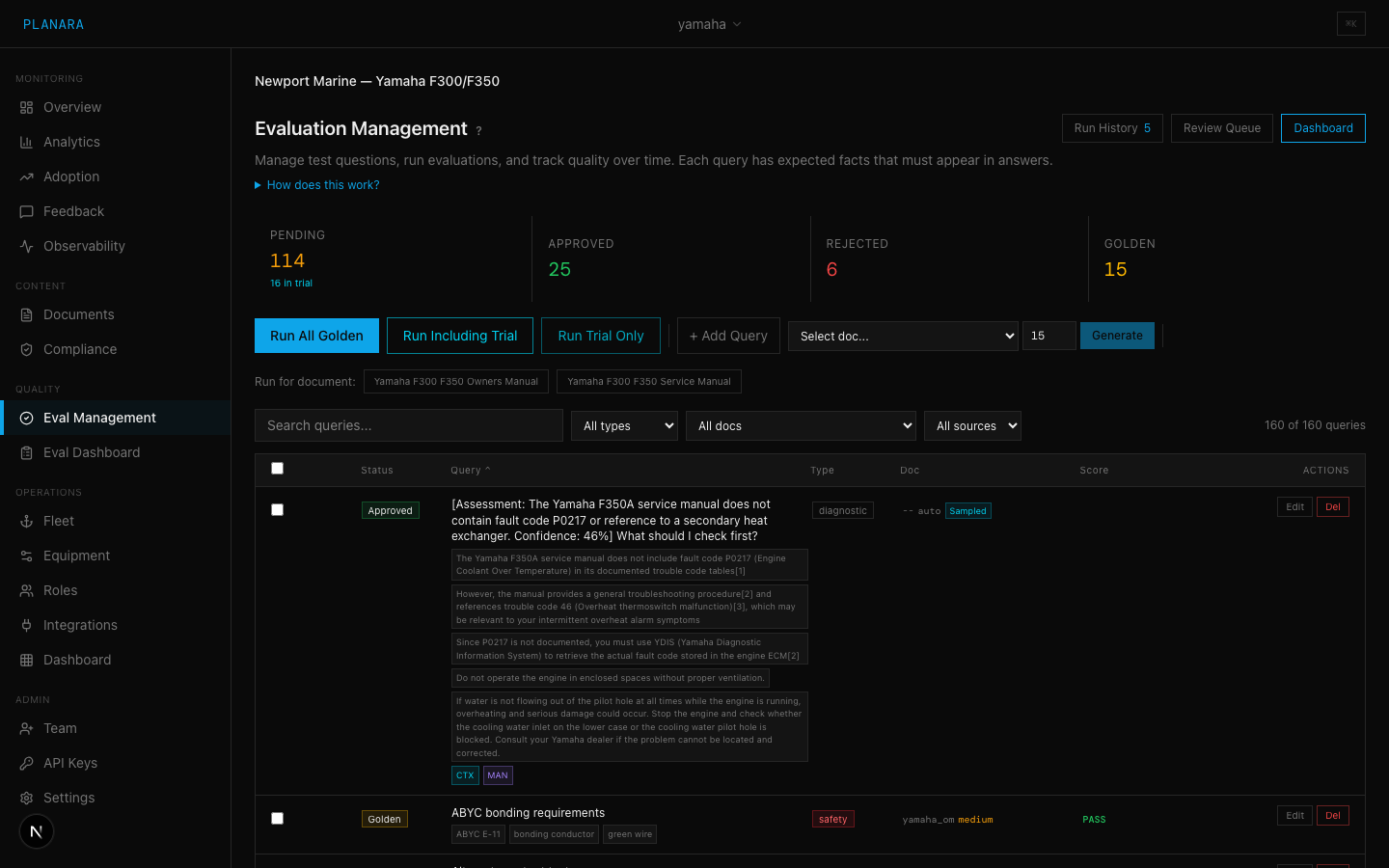
The Eval Management page is your primary interface for quality assurance. Here you generate test questions from your documents, review and approve them, run evaluations, and track results over time. This is the most complex page in the backoffice and the most important for maintaining answer quality.
Core workflow
The eval workflow follows this lifecycle:
- Generate -- AI creates test questions from your documents
- Review -- You review each question and move it to Trial, Approved, or Rejected
- Trial -- Test new queries in a sandbox. Results are tracked separately from your official score.
- Promote -- Trial queries that pass consistently get promoted to Approved or Golden
- Run -- Approved and Golden questions are run against the live pipeline
- Monitor -- Golden queries run on every quality check to prevent regressions
Status summary cards
Five clickable cards at the top show counts by status. Click a card to filter the list below.
| Status | Description | Color |
|---|---|---|
| Pending | Newly generated, awaiting human review | Yellow |
| Trial | Testing mode -- runs separately, doesn't affect official quality score | Cyan |
| Approved | Reviewed and confirmed as valid test questions | Green |
| Rejected | Discarded as invalid, unclear, or untestable | Red |
| Golden | The "golden set" -- permanently tracked for regression detection | Amber |
Generating queries
Auto-generate
Set the count (1-50) and optionally select a specific document. Click "Generate Queries" to have Planara's AI read your documents and create test questions with expected answers.
Each generated query includes:
- A question text
- Expected facts (the key pieces of information the answer must contain)
- A query type (spec, procedure, safety, troubleshooting, parts)
- A difficulty level (easy, medium, hard)
- The source document and page
- Context streams (optional) -- telemetry data, fault codes, or customer context to inject during the eval run. Multi-stream queries test whether the pipeline correctly reasons about external data alongside document content.
- Expected stream usage (optional) -- which context streams the response should reference, verifying that injected data influences the answer
- Must-not-contain (optional) -- terms that should NOT appear in the response, useful for testing that the model avoids hallucinated or deprecated information
Add manually
Click "Add Query" to create a custom eval query. You specify:
- Query text
- Expected facts (comma-separated)
- Query type
- Difficulty
- Source document (optional)
Manual queries are useful for edge cases that auto-generation might miss.
Reviewing queries
Each query in the list shows:
- Status badges -- current status, query type, difficulty, source doc, last result
- Query text -- the test question
- Expected facts -- chips showing what the answer must contain
- Run results -- if the query has been run, shows PASS/FAIL, missing facts, confidence, and latency
Actions per query
| Action | Description |
|---|---|
| Trial | Move to trial status for sandbox testing. Available for pending queries. |
| Approve | Mark as a valid test question. Moves from pending or trial to approved. |
| Edit | Inline editing of query text and expected facts. |
| Reject | Mark as invalid. Rejected queries are not run. |
| Golden | Promote an approved, passing query to the golden set. Only available for approved queries that have passed. |
Bulk actions
| Action | Description |
|---|---|
| Approve All Pending | Approves all pending queries at once. Useful after reviewing the full list. |
| Run Approved | Runs all approved (and golden) queries against the live pipeline. |
| Promote Passing to Golden | Promotes all approved queries that have passed to golden status. |
Running evaluations
Click "Run Approved" to start an eval run. The system:
- Creates a new eval run record
- Sends each approved/golden query to the live API
- Streams results back via Server-Sent Events (SSE)
- Shows a progress bar: "Running 5/20..."
- Updates each query's PASS/FAIL status in real time
During a run
Each completed query shows inline results:
- PASS/FAIL status badge
- Missing facts (for failures) -- which expected facts were not found in the response
- Confidence -- the pipeline's confidence score
- Latency -- response time in seconds
After a run
The run is recorded in the history. Navigate to Eval Dashboard for aggregate metrics and trend analysis.
Filters and sorting
| Control | Options |
|---|---|
| Status filter | All, Pending, Trial, Approved, Rejected, Golden |
| Type filter | All, spec, procedure, safety, troubleshooting, parts |
| Document filter | All, or specific document |
| Search | Free text across query text and expected facts |
| Sort | By query text, type, status, document, or score (ascending/descending) |
Selection and batch operations
Checkboxes allow selecting multiple queries for bulk status changes. The selection persists across filter changes.
Run history
Click "History" to see past eval runs with:
- Status (complete, running, failed)
- Scope type (what was run: all, golden-only, etc.)
- Total queries, passed count, pass rate
- Average latency
- Timestamp
Click a run to see its detailed results, including per-query breakdown.
Auto-generation triggers
Eval queries are automatically generated when certain events occur:
- Document ingestion -- after a new document is ingested, the system generates 5-10 eval queries covering the new content. These land in Pending status for review.
- Negative feedback -- when a technician rates a response negatively, the query is automatically added as a candidate eval query with the "troubleshooting" type.
- Nightly eval failures -- when the nightly batch detects a regression, the failing query is flagged for review and potential golden promotion.
Agentic eval diagnosis
When queries fail, the system can automatically diagnose the root cause. Click "Diagnose" on a failed query (or use the bulk "Diagnose All Failures" action) to trigger the agentic eval agent, which:
- Re-runs the query against the live pipeline and inspects the full pipeline state
- Classifies the root cause into one of: retrieval failure, generation error, grounding miss, ontology gap, prompt issue, or overly strict fact checker
- Proposes a fix -- specific, actionable changes like "add ontology association: 'winterize' -> 'storing transporting vapor separator'", "adjust prompt to include X", or "re-chunk section Y"
- Queues the fix for human approval before application
- Re-runs after fix to verify improvement
See Eval Automation for the full agentic workflow.
Trial workflow
Trial mode is a sandbox for testing new eval queries without affecting your official quality metrics. It bridges the gap between "this query looks good" and "this query is proven" -- giving you a safe place to iterate.
What trial mode is
When a query is in Trial status, it:
- Can be run on demand or as part of a trial eval batch
- Has results tracked separately from your official (Golden + Approved) score
- Does not affect the pass rate visible on the Eval Dashboard's main KPI
The dashboard shows dual-track metrics: "Official: 92% (golden + approved), Trial: 68% (trial only)." A low trial score is expected -- it means you're testing new criteria, not that the system is broken.
When to use trial mode
- Testing auto-generated queries. AI-generated queries sometimes have bad expected facts or ambiguous wording. Trial mode lets you catch these before they pollute your baseline.
- Exploring quality boundaries. Want to know if Planara handles multi-step diagnostic queries? Create a batch, put them in Trial, and run them. No risk.
- Domain expert review. When a subject matter expert creates queries about F350A thermostat procedures, they can trial-run them to verify the expected facts match what the system actually returns.
- Post-pipeline-change validation. After re-ingesting a document or updating a prompt, create trial queries targeting the changed content and run them before promoting.
Step by step
- Generate or create queries. Use auto-generation from a document, or manually add queries. They start as Pending.
- Move to Trial. Select one or more queries and change status to Trial. This signals "worth testing, not yet committed."
- Run a trial eval. Click "Run Trial" to execute only trial-status queries against the live API. Results stream back in real time.
- Review results. Check which trials passed and which failed. For failures, look at missing facts -- is the query wrong, or is the content genuinely missing?
- Promote or reject. Passing trials with correct expected facts get promoted to Approved (or directly to Golden if they're critical baseline queries). Failing trials get edited and re-run, or rejected if the query is bad.
Best practices
- Always trial auto-generated queries before promoting. Even good AI generation produces ~20% questionable queries. Trial catches these.
- Run trial evals after pipeline changes. Changed a prompt? Re-ingested a document? Run your trial set to see if the change helped or hurt.
- Use trial for multi-stream queries. Queries with telemetry or fault code context are harder to get right. Test them in trial first.
- Don't leave queries in trial forever. Promote or reject within a week. Stale trials create review debt. If a trial has passed 3+ times, it's ready for promotion.
- Use trial to test edge cases. "What happens if a tech asks about a completely undocumented procedure?" Put that query in trial and find out.
FAQ
Q: How many golden queries should I have? A: Aim for at least 30-50 golden queries covering your key content areas. More is better -- 100+ is ideal for production deployments.
Q: What does "failure type" mean in results? A: Failures are classified as: retrieval (chunks not found), generation (LLM produced wrong answer), grounding (answer not supported by retrieved content), safety (safety info missing), completeness (answer incomplete), must_not_violation (response contains prohibited terms), low_confidence (retrieval confidence below threshold).
Q: How often should I run evals? A: After every pipeline change (re-ingestion, prompt update, model change) and at least weekly during active development. In production, the nightly eval batch runs automatically and alerts on regressions.
Q: What are multi-stream eval queries? A: Queries that include additional context streams (telemetry data, fault codes, customer info) alongside the question text. These test that the pipeline correctly incorporates external data into its reasoning. For example, a query about overheating that includes telemetry showing coolant_temp=215F should produce a different response than the same query without telemetry.