Settings
Branding, terminology, dashboard access, query suggestions, and user governance for your workspace.
What this page does
The Settings page controls the presentation and behavior of Planara for your workspace. Changes here affect how Planara appears to your technicians, what features are enabled per role, and how users are managed.
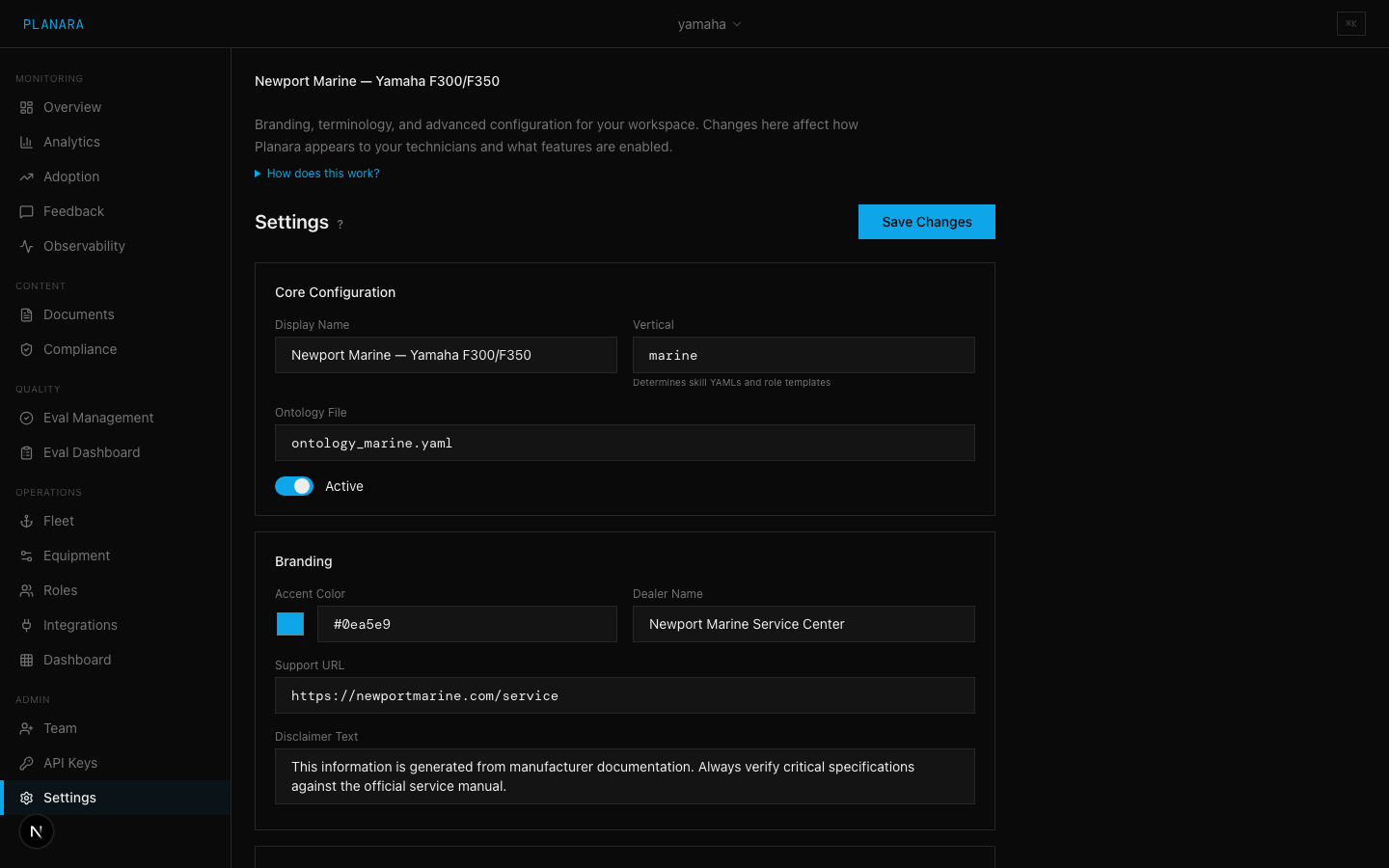
Core Configuration
| Field | Description |
|---|---|
| Display Name | Your workspace name shown in the UI (e.g., "Newport Marine Service Center") |
| Vertical | Industry vertical identifier. Determines which skill YAMLs and role templates are used. Examples: marine, factory, vehicle. |
| Ontology File | Path to an ontology YAML file that defines domain-specific entity relationships. Used for advanced query classification. Example: ontology_marine.yaml |
| Active toggle | Master switch for the workspace. When inactive, the namespace is disabled. |
Branding
| Field | Description |
|---|---|
| Accent Color | Color picker + hex input. Sets the primary accent color used throughout the technician frontend. Default: #0ea5e9 (sky blue). |
| Dealer Name | Your business name shown in customer-facing contexts (e.g., escalation messages, operator links). Example: "Newport Marine Service Center" |
| Support URL | Link to your support page or contact form. Used in the frontend for "Get Help" type actions. |
| Disclaimer Text | Custom text shown at the bottom of every AI-generated response. Use this for liability disclaimers, "always consult a professional" notes, etc. |
Industry Terminology
Customize labels shown in the frontend to match your industry vocabulary:
| Field | Default | Description |
|---|---|---|
| Equipment Singular | "engine" | What one unit is called (e.g., "unit", "machine", "vehicle") |
| Equipment Plural | "engines" | Plural form |
| Fleet Label | "Fleet" | Label for the fleet section (e.g., "Equipment", "Assets") |
| Operator Label | "Captain" | What the person operating the equipment is called (e.g., "Operator", "Driver") |
| Location Prefix | "Docked at" | Prefix for location display (e.g., "Located at", "Stationed at") |
| Service Unit | "hours" | Unit for service tracking (e.g., "miles", "cycles") |
| Operator CTA Label | "Book a Service" | The primary call-to-action button text for equipment operators |
Role Dashboard Access
Controls which dashboard tabs each role can see in the technician frontend. The available tabs are:
| Tab | Description |
|---|---|
| chat | The AI chat interface (always required, cannot be removed) |
| fleet | Fleet overview and equipment details |
| analytics | Usage analytics and feedback |
| queue | Work order queue |
For each role in your namespace, toggle tabs on/off. Chat is always required and cannot be removed.
Example: A technician role might have access to chat, fleet, and queue. An operator role might only have chat.
Query Suggestions
Configure the pre-filled query prompts (chips) that users see when they first open the chat interface:
| Field | Description |
|---|---|
| Technician Chips | One query per line. These appear as suggestion buttons for technician-role users. |
| Operator Chips | One query per line. These appear as suggestion buttons for operator-role users. |
Good suggestions:
- Are specific to your equipment and documentation
- Cover common questions your team asks
- Demonstrate the types of queries Planara handles well
Example technician chips:
Compression test procedure
Gear oil change interval
Fuel injector specifications
Anode replacement procedure
Example operator chips:
When is my next service due?
What oil does this engine take?
How do I winterize my boat?
User Governance
| Field | Description |
|---|---|
| Max Users | Maximum number of users allowed in this namespace. Default: 50. |
| Self-service invites | Toggle. When enabled, tenant admins can invite new users directly. When disabled, only Planara system admins can add users. |
| Allowed Invite Roles | Checkboxes for which roles can be assigned via self-service invite. Options: User, Tenant Admin. Super Admin cannot be self-assigned. |
Read-only section
Shows immutable workspace information:
- Namespace -- the URL slug for this workspace
- Created -- when the workspace was created
Saving changes
Click "Save Changes" at the top of the page. A green "Saved" indicator appears for 2 seconds after successful save. All changes on this page are saved together as a single update.